Features
Below you can see all the basic features that can be used together to fit your context.
Translation
The translation feature generates avatar signing from a text.
Caption
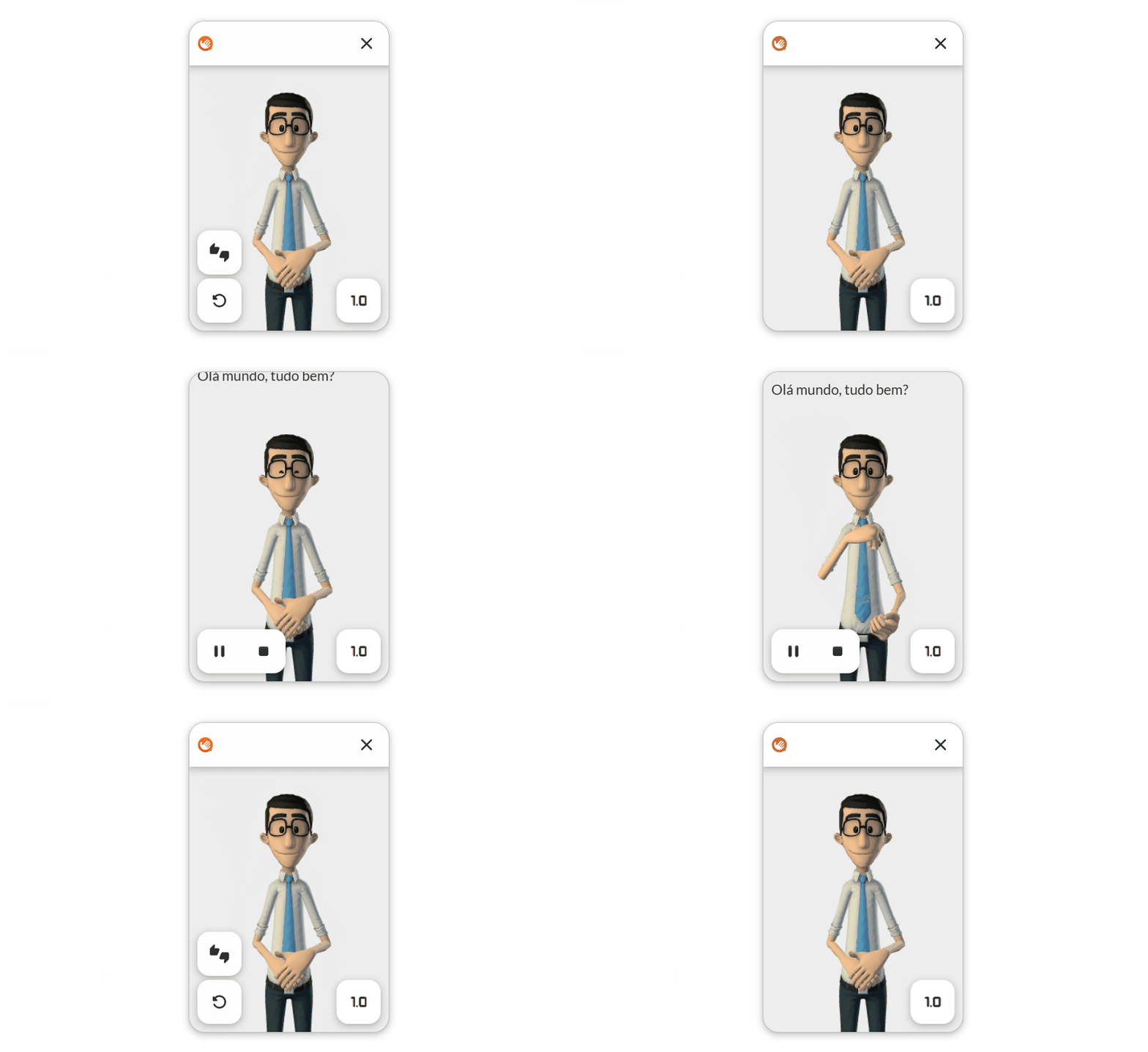
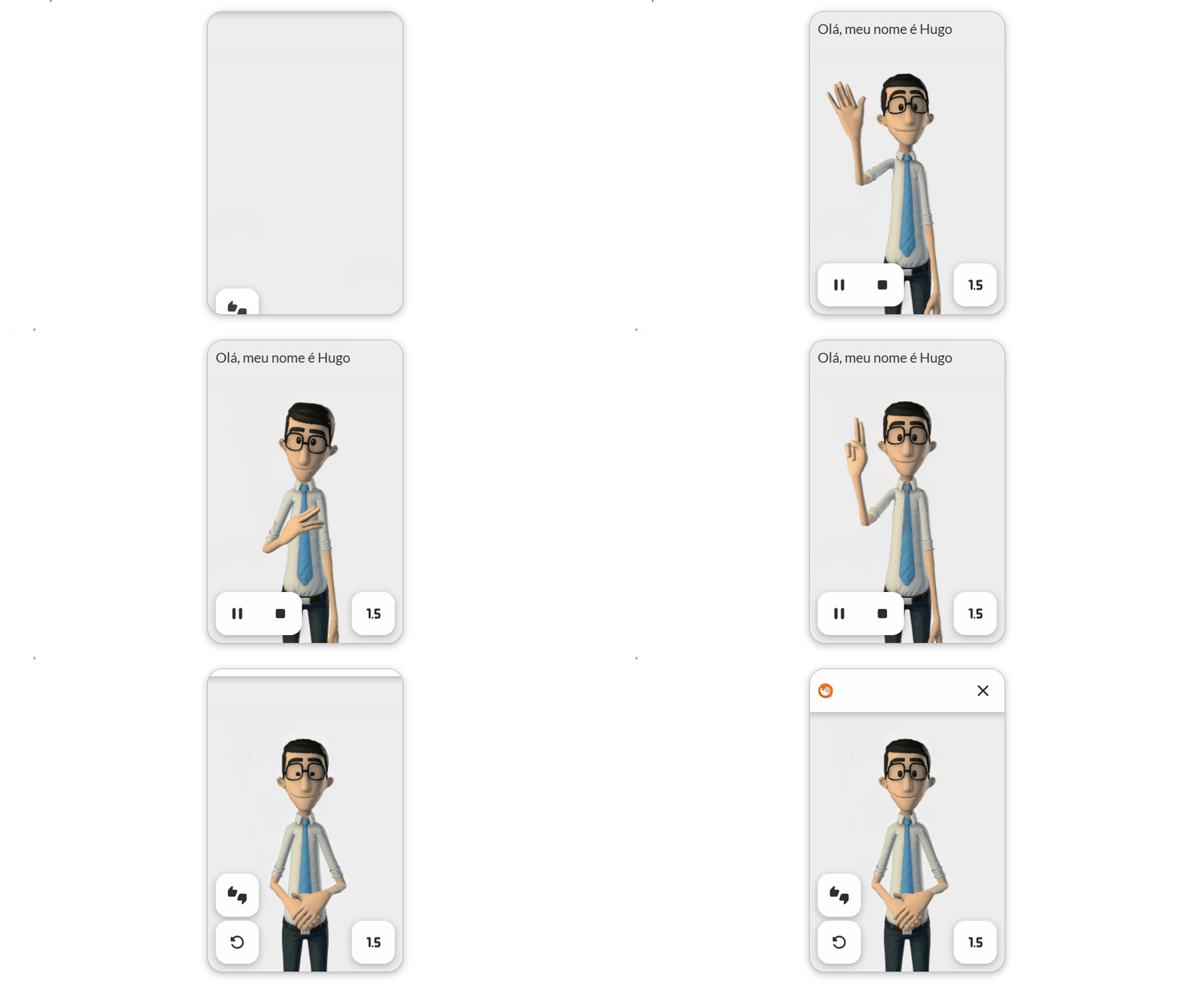
Displays on the screen the text that is being translated by the avatar.
Speed
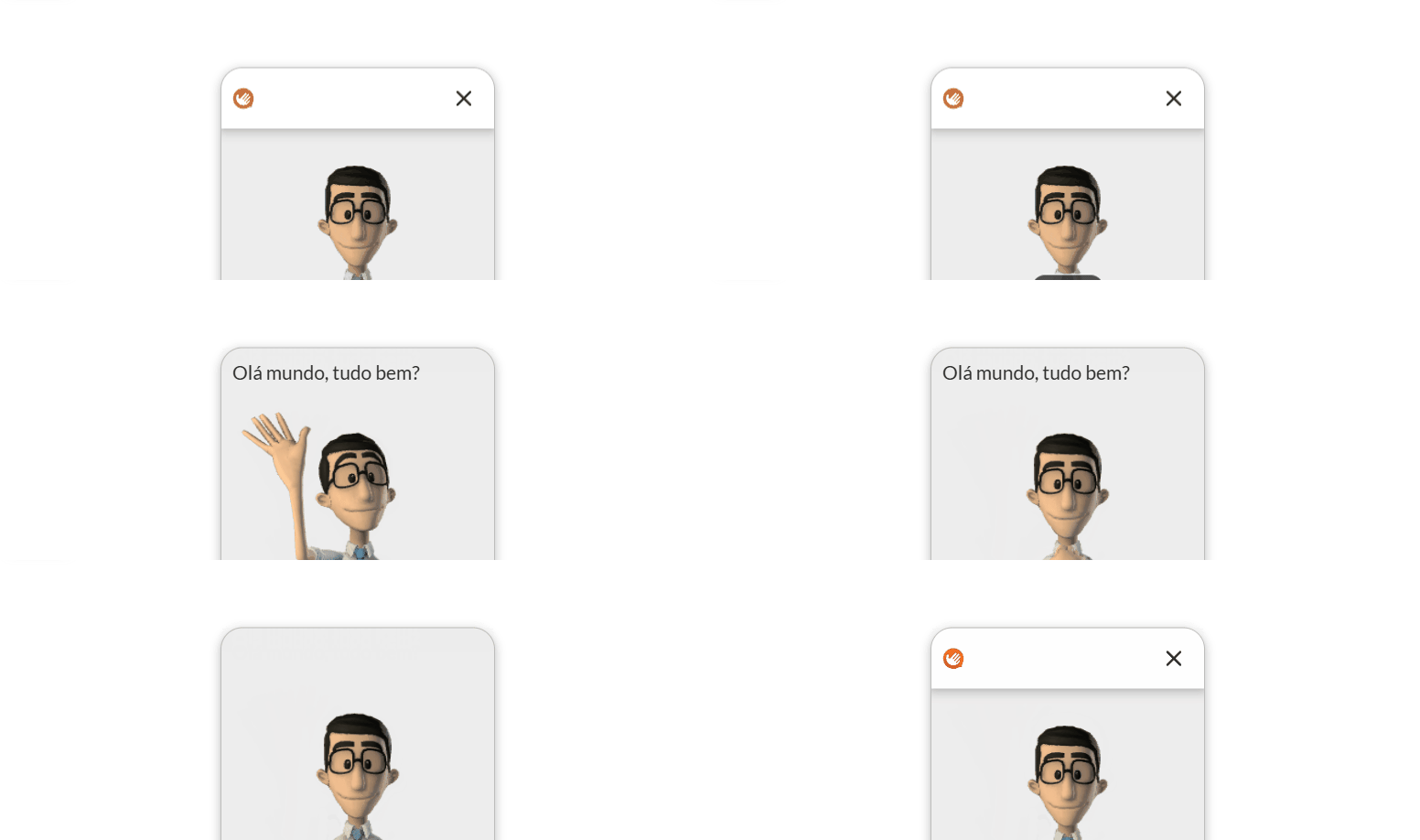
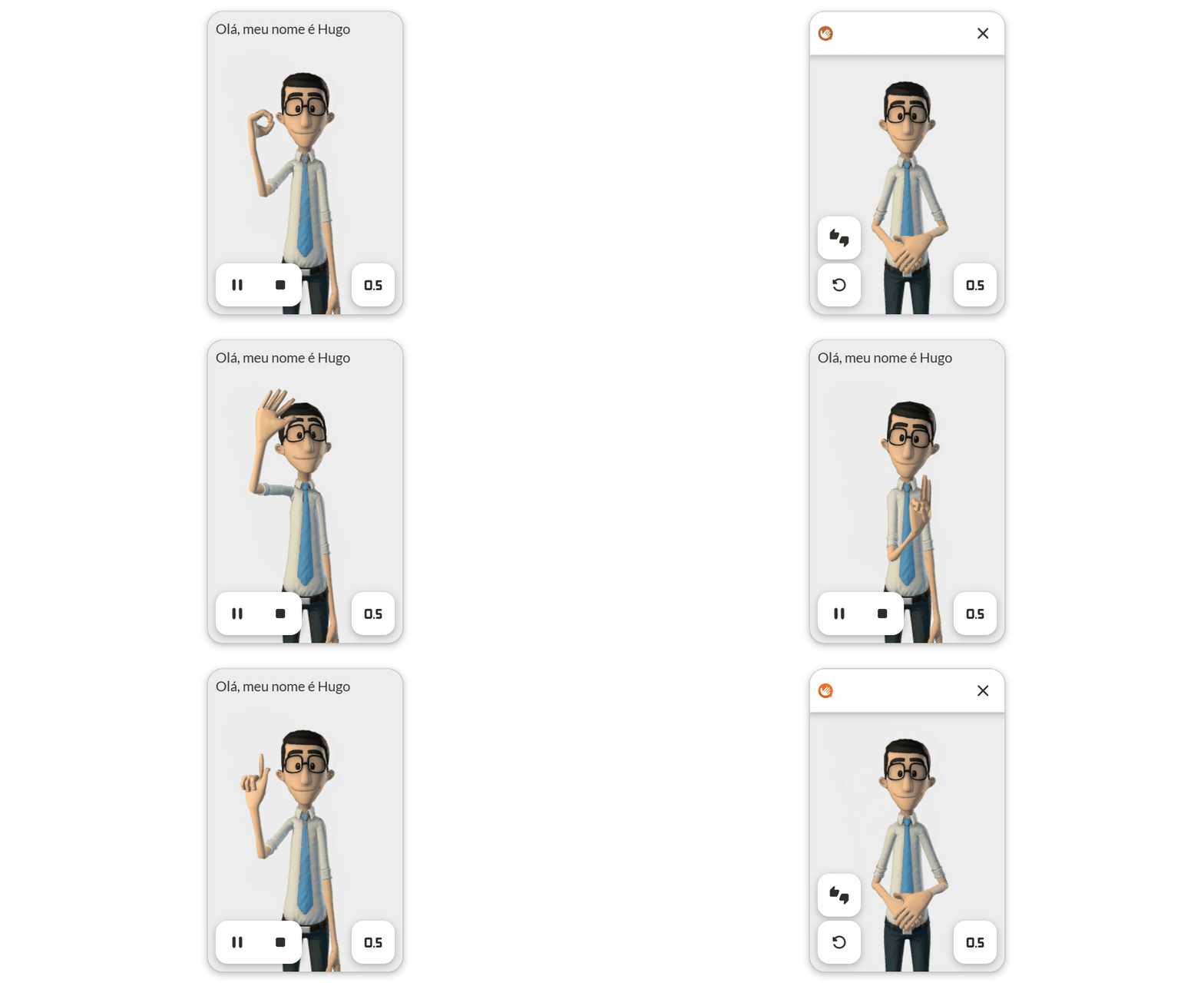
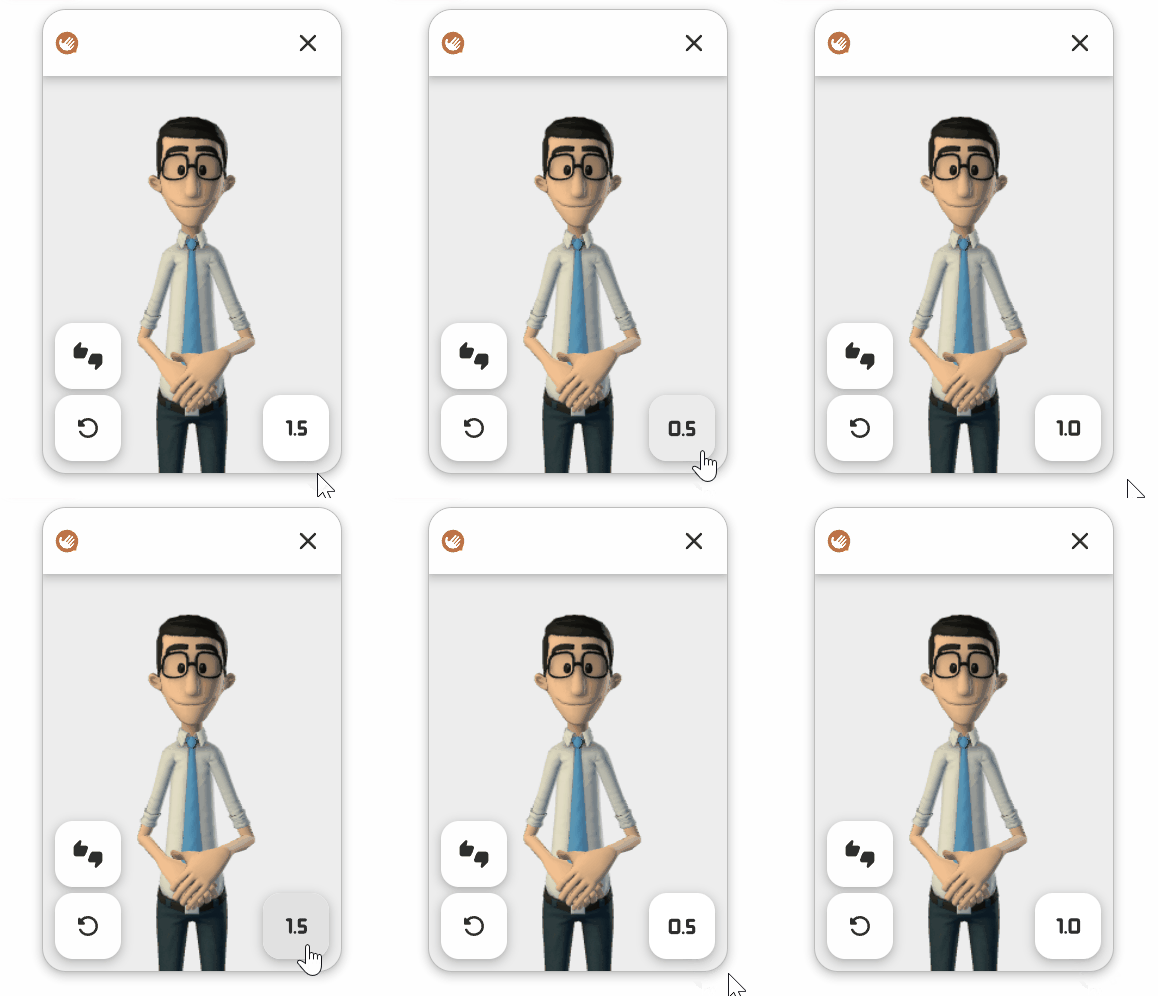
Allows changing the translation speed.
There are 3 speeds:
1x → Default
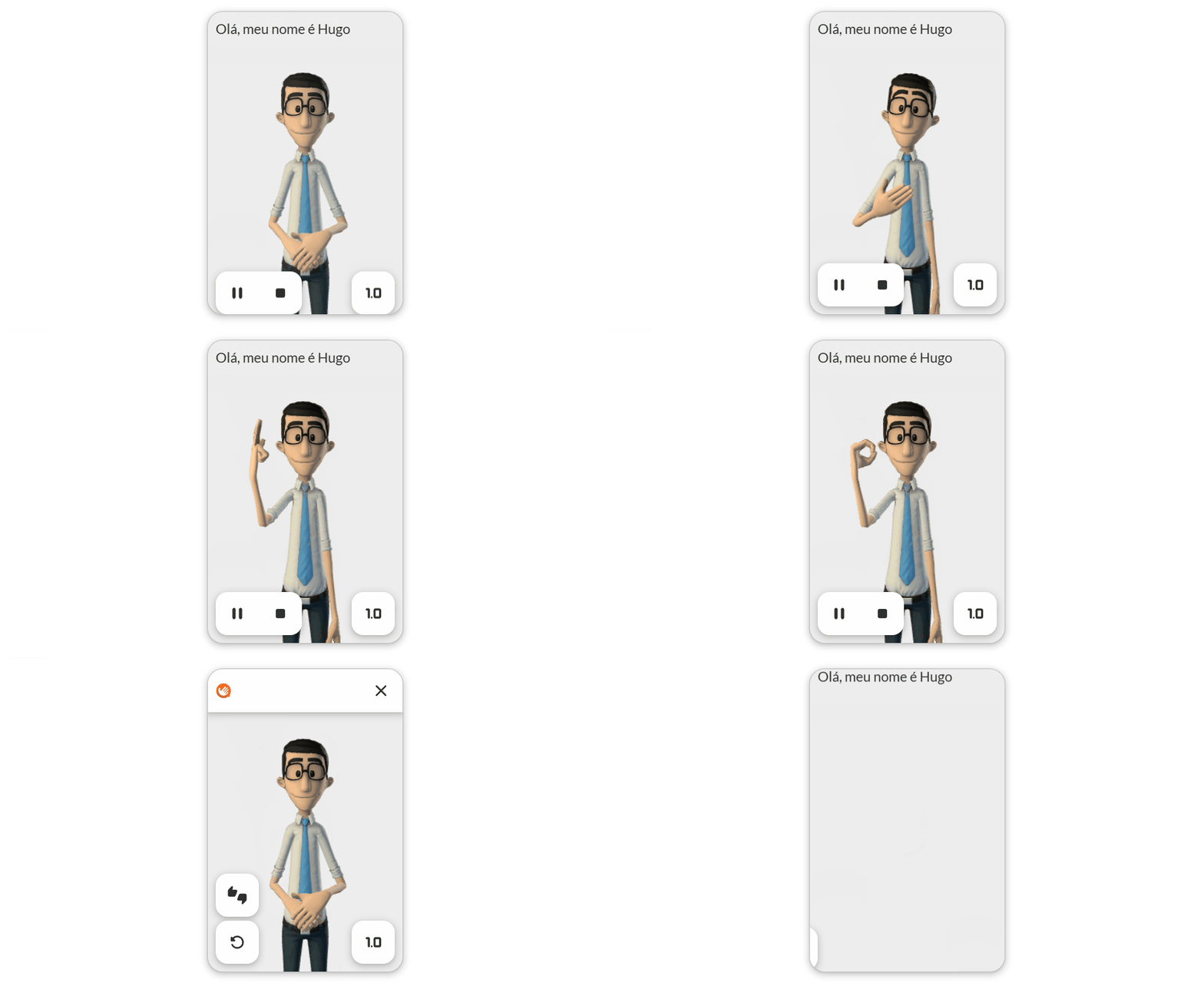
1.5x
0.5x
The speed can be changed before, during, and between translations.
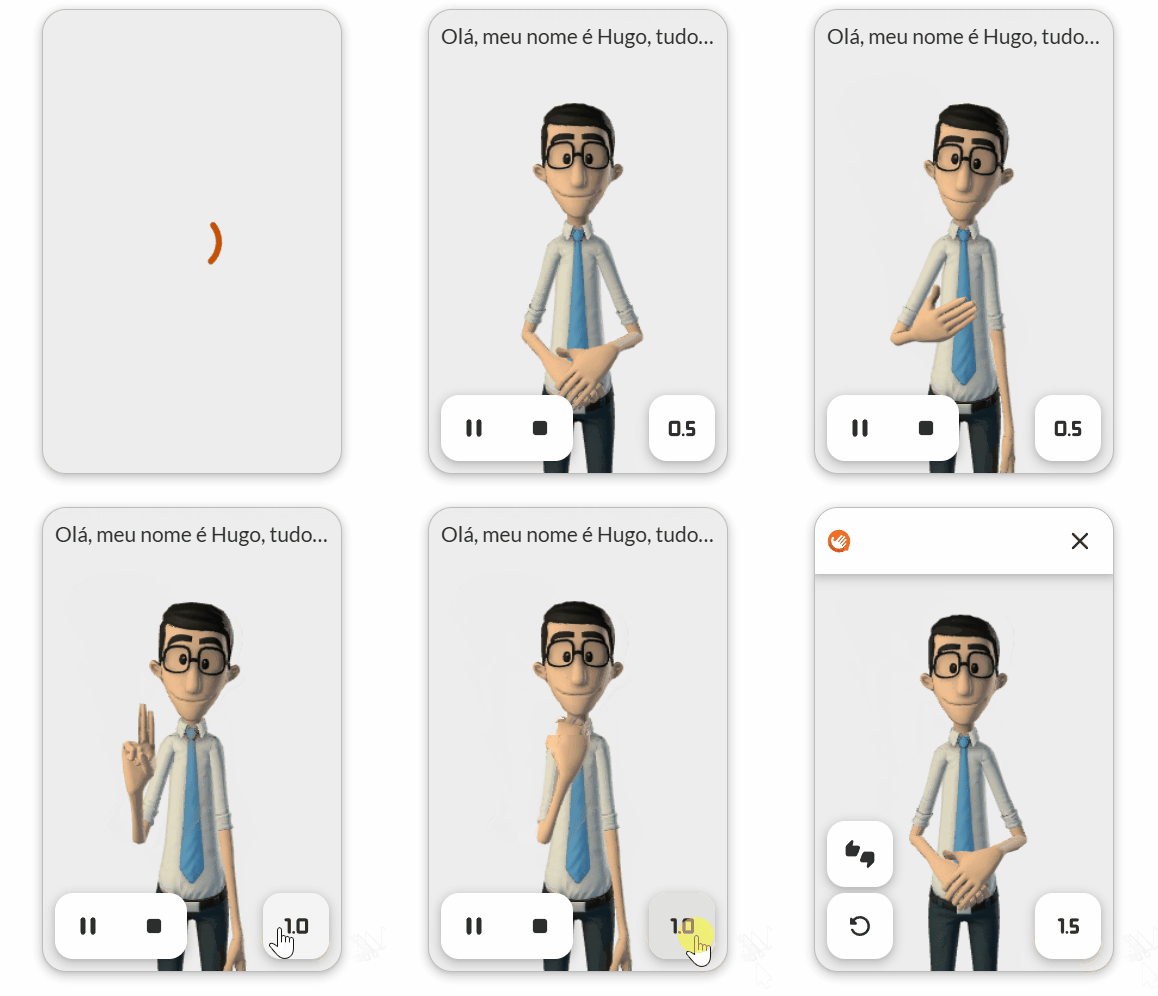
Using this function is recommended regardless of the context, as it provides users with control to personalize the translation experience according to their needs and/or preferences.
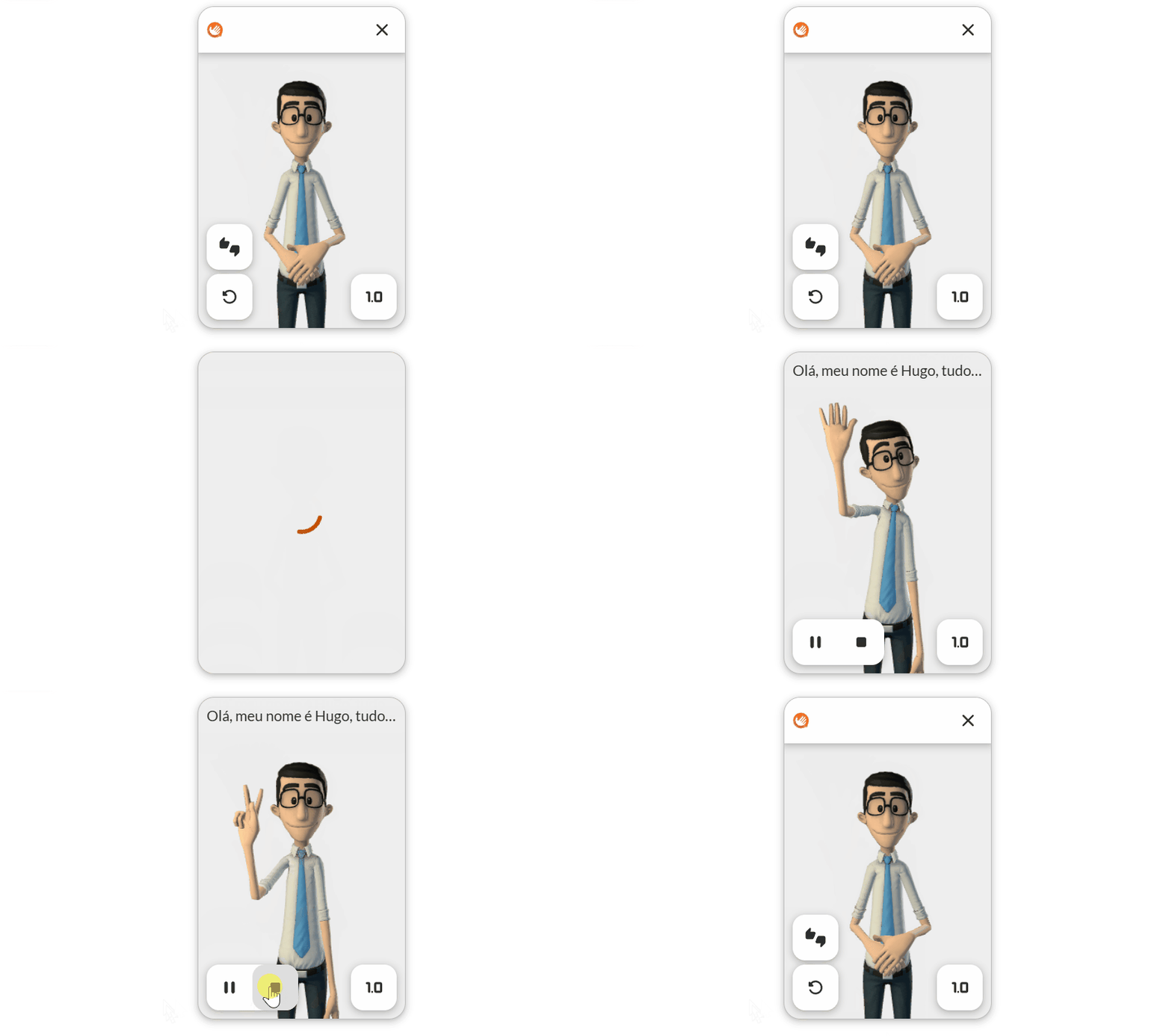
Stop Translation
Clicking the stop button interrupts the translation.
Pause Translation
Pauses the translation and allows it to be resumed later.
- When the translation is paused, the animation stops, and the "pause" icon changes to "play".
- Clicking "play" resumes the animation, and the icon switches back to "pause".
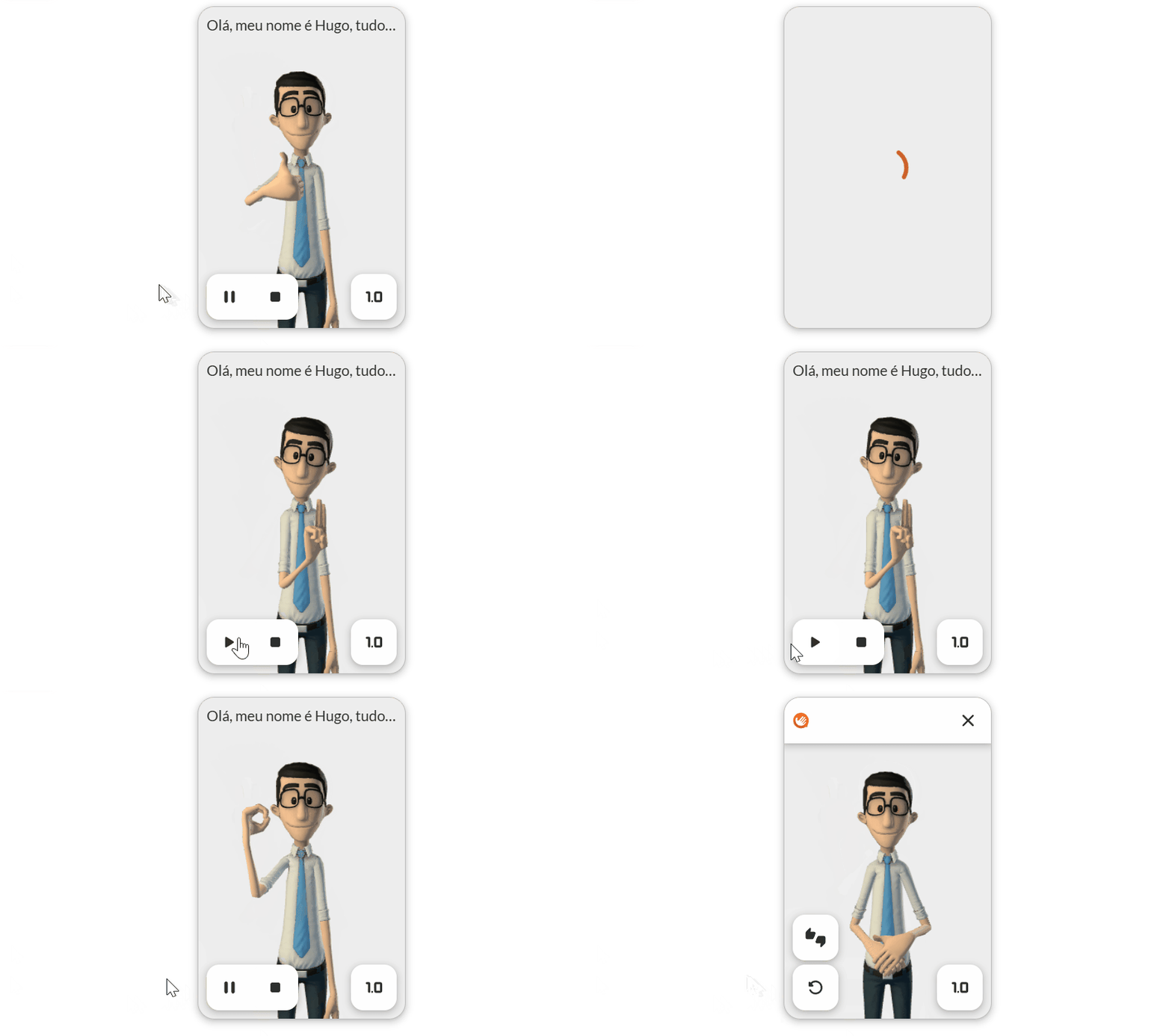
This feature is useful for situations where the translated texts are very long. In contexts where texts are short, this feature does not need to be available.
Repeat Translation
Allows users to repeat the last performed translation.
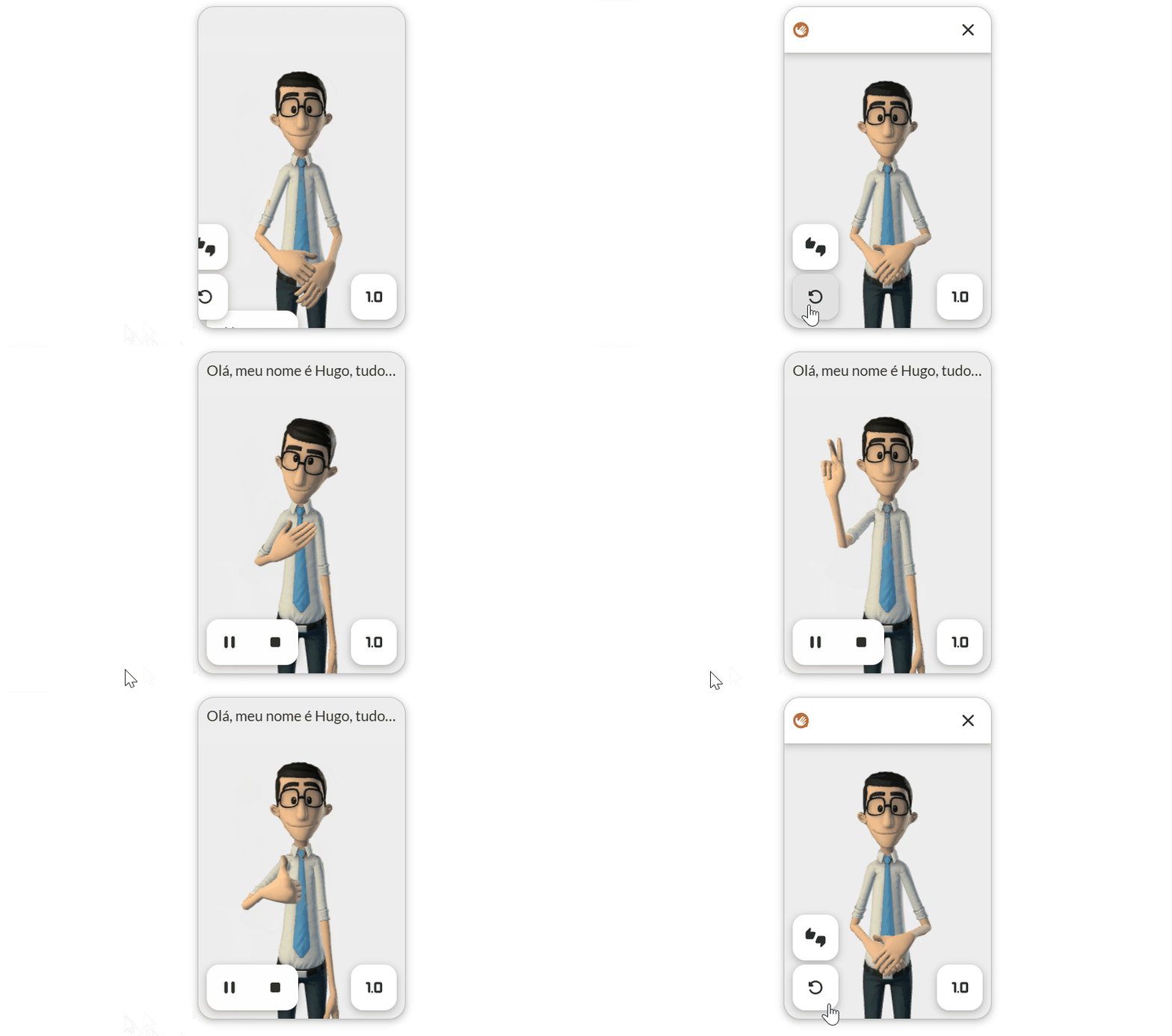
This feature can be useful in contexts where users need more time to generate the text to be translated, such as:
- Text input
- Audio input
- Image photo (OCR)
Translation Rating
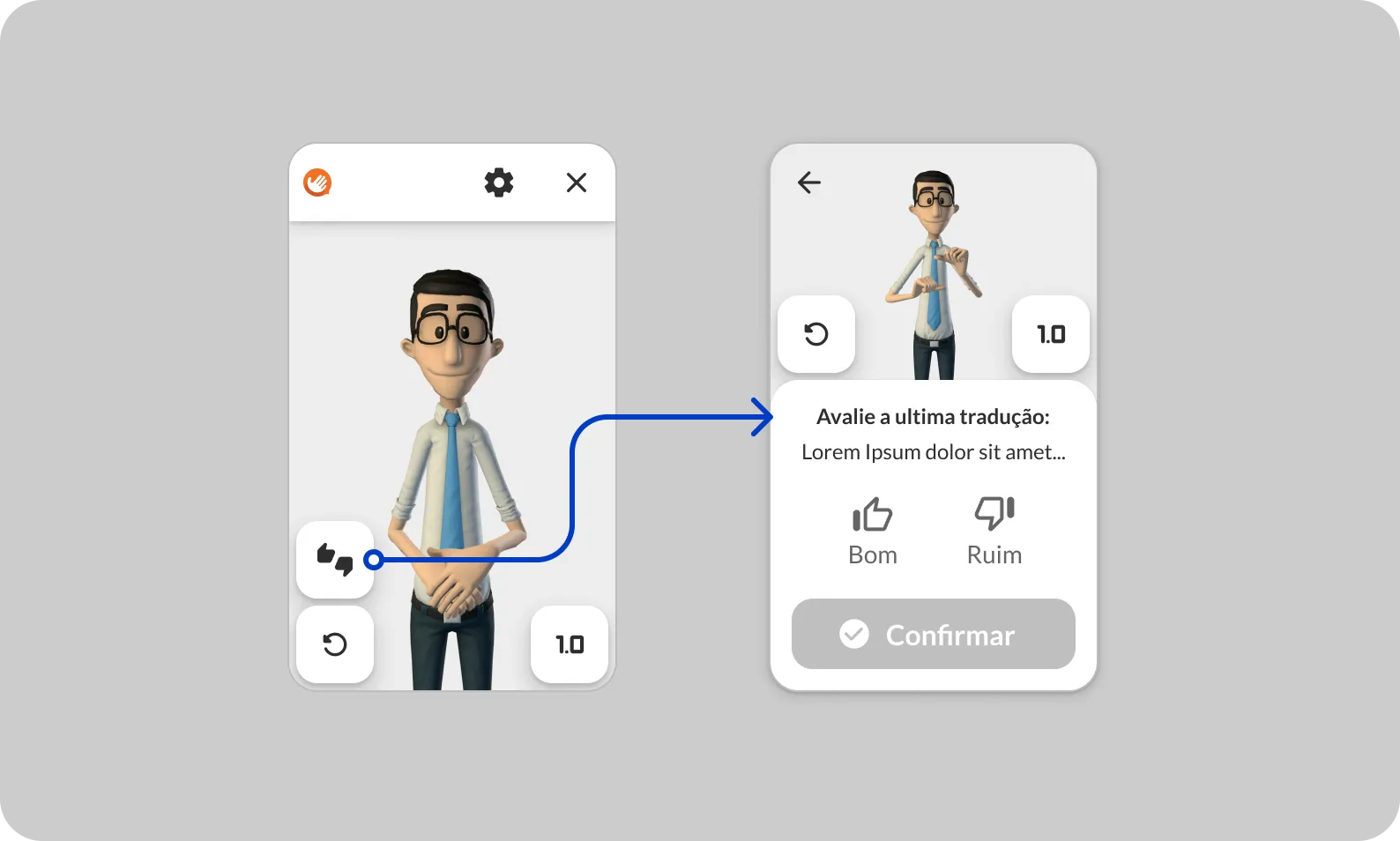
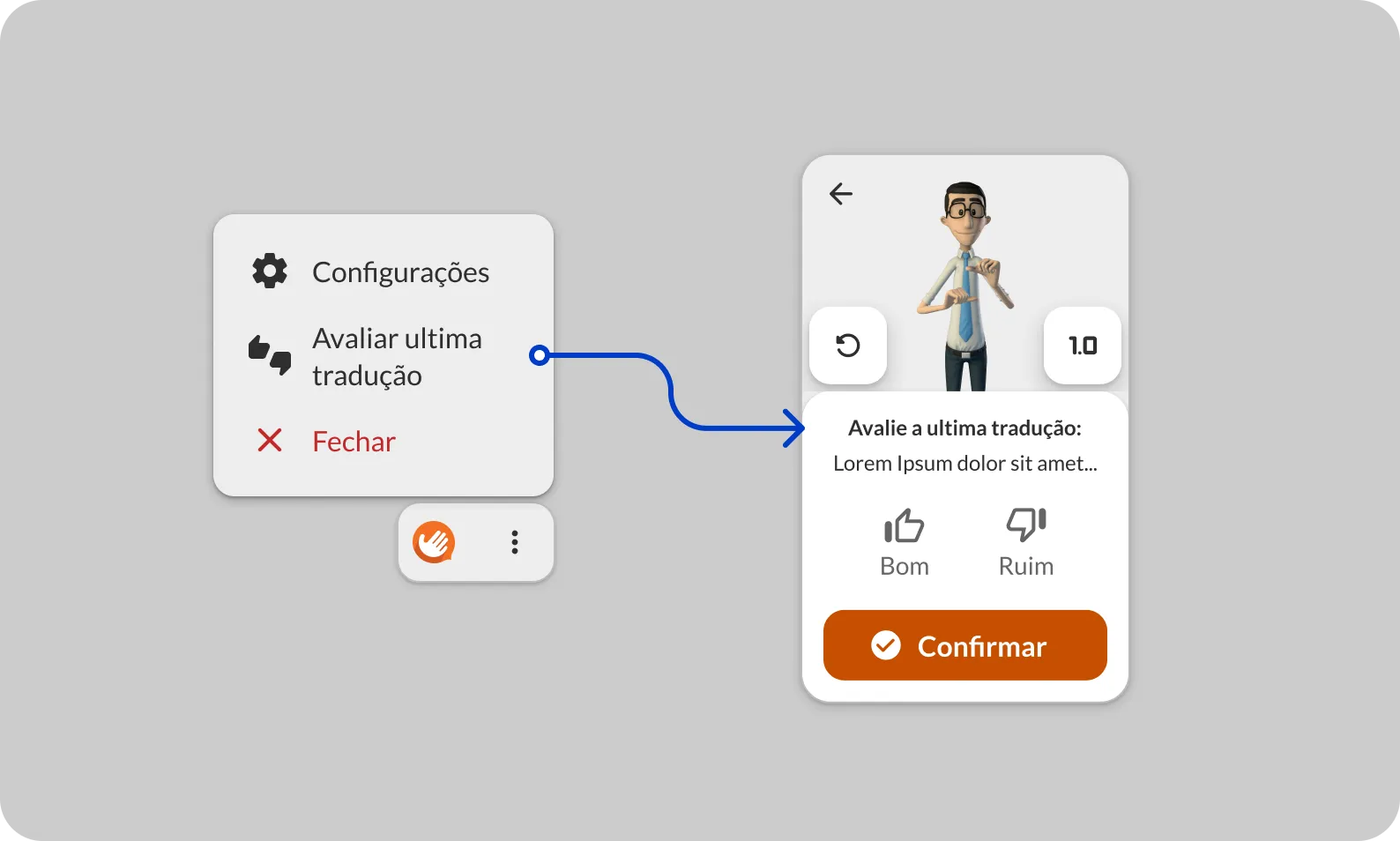
This feature allows users to rate the last performed translation. It is highly recommended since negatively rated translations are sent to our linguistics team, which corrects the errors and trains our translation AI to prevent them from recurring.
To facilitate implementation, our SDK already includes an interface for this feature, but it can be disabled so you can create your own rating layout.
This feature provides the following interface:
- Rating button
- Button behavior.
- Rating screen
- Translation rating text.
- Button for positive rating.
- Button for negative rating.
- Button to submit the rating.
- Feedback animation upon submission.
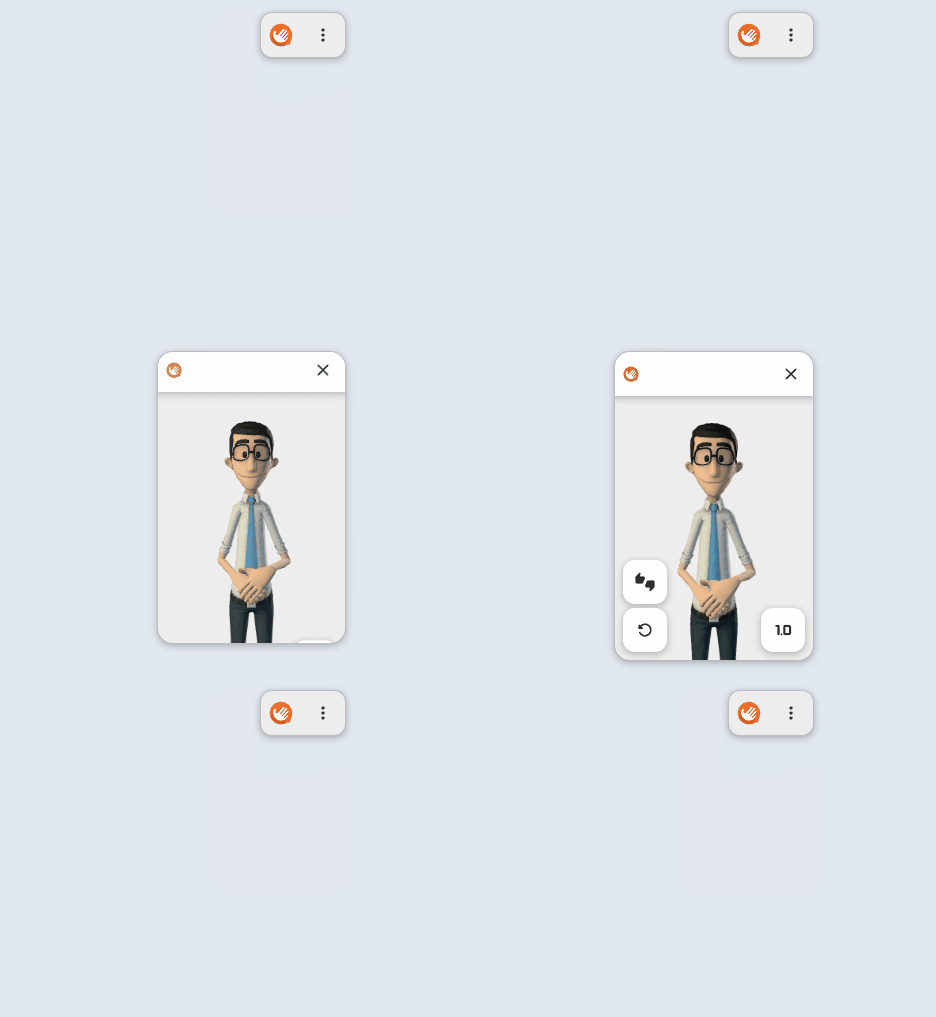
It can be accessed from the window and the widget:
Draggable Window
Allows users to freely move the window or widget within a predefined area, which can be the entire screen or a specific area.
To drag the window, simply click on the top bar of the window. 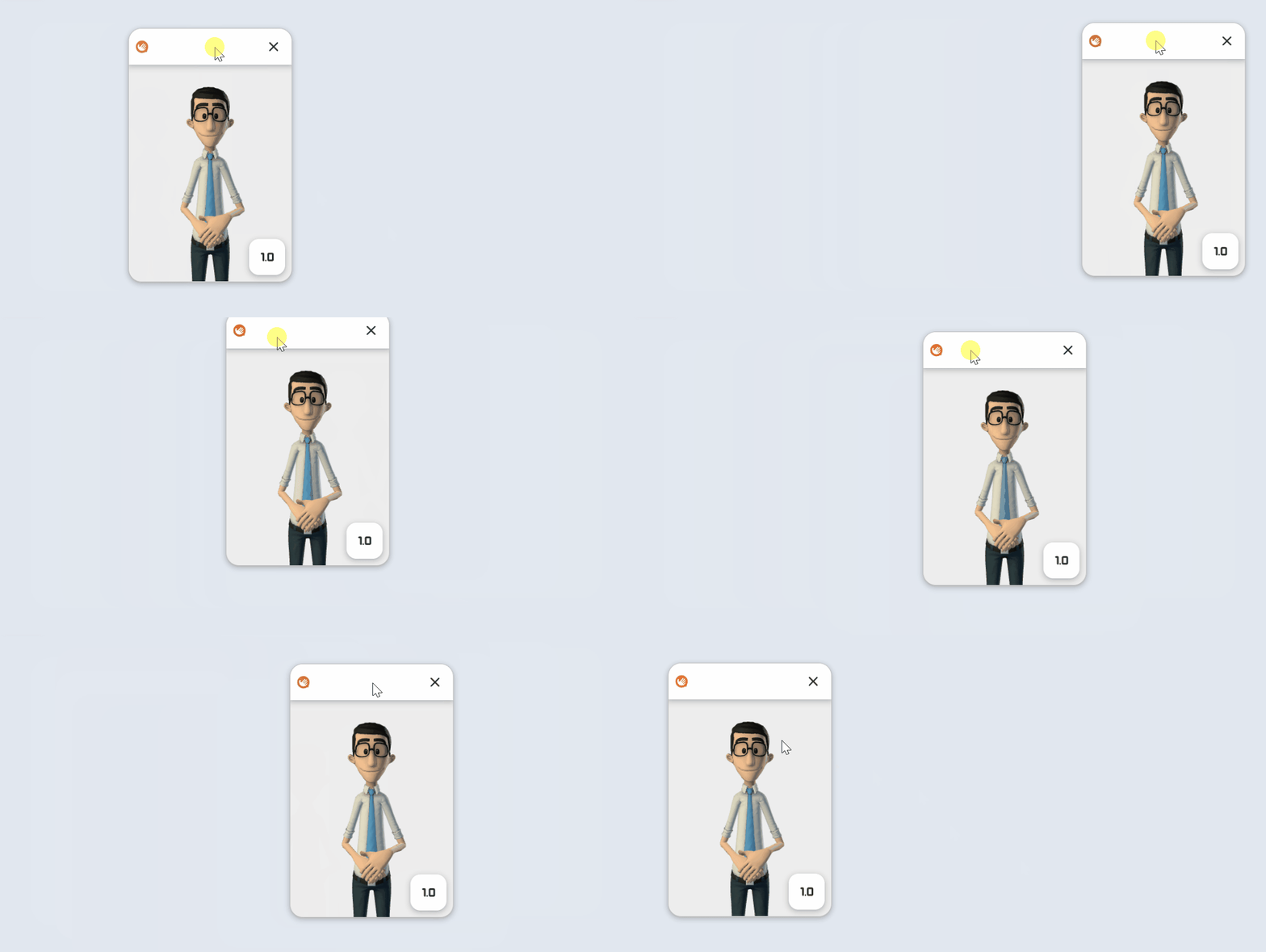
To drag the widget, do the same as with the window but on the Hand Talk icon. 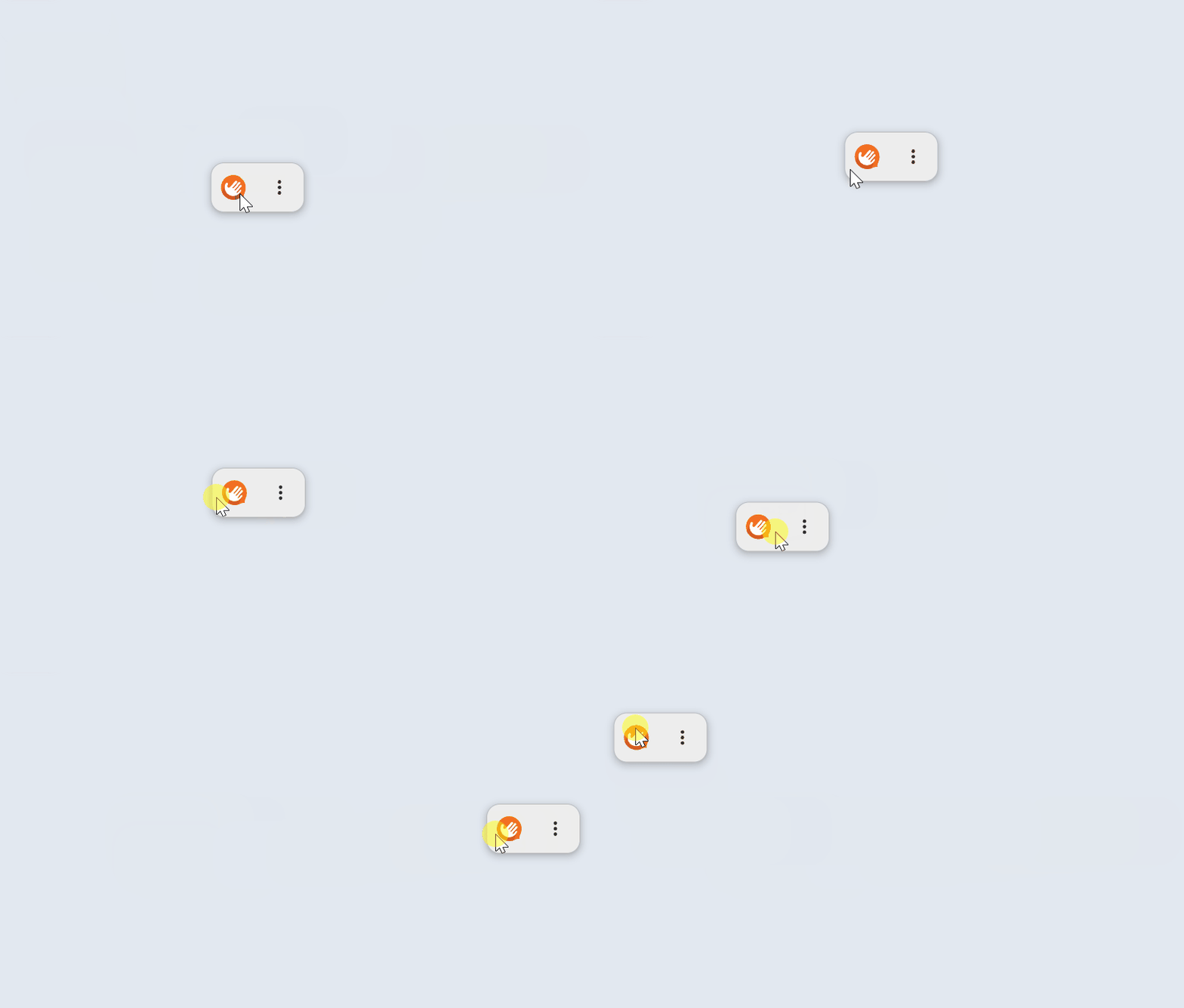
Zoom
You can zoom in and out on the avatar using the shortcut “Ctrl + scroll” while the cursor is inside the avatar area.
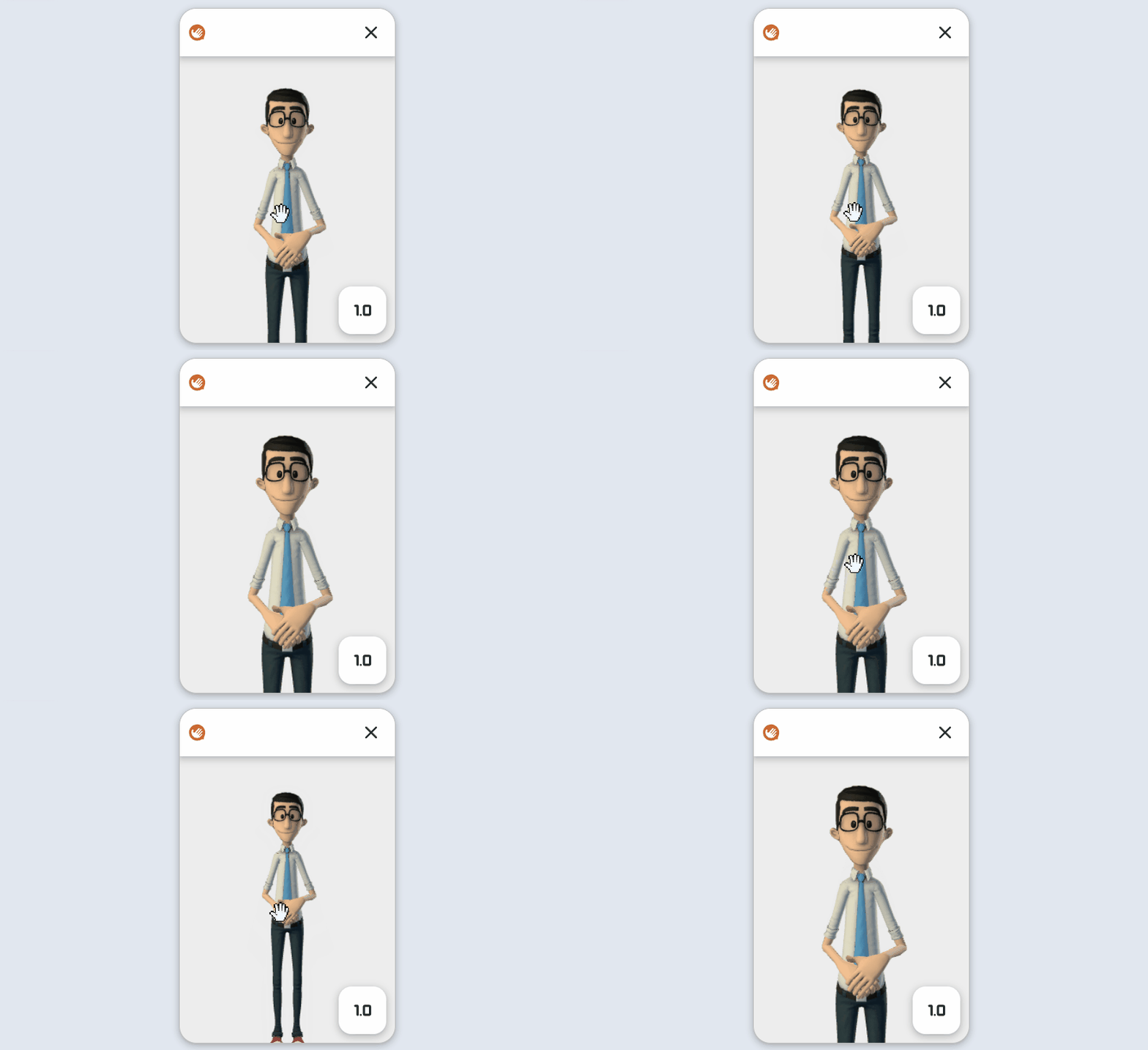
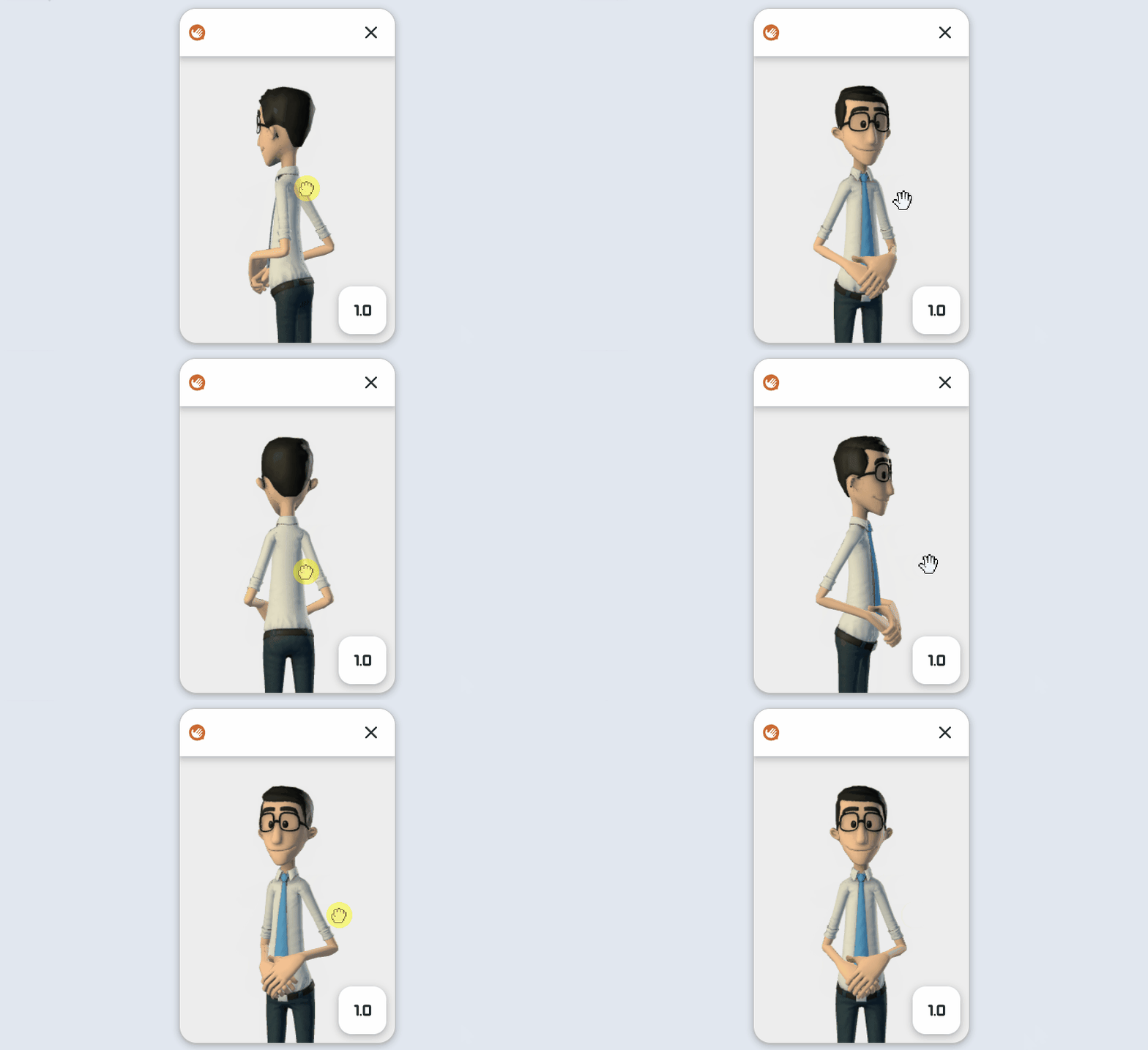
Avatar Rotation
It is possible to rotate horizontally 360° by dragging the cursor inside the avatar area.
Minimize and Maximize
This function allows the translator to be minimized or maximized, switching between widget and window. See below: