Usage Suggestions
By default, we designed the SDK to be used as a floating window above your application's components. This behavior can be adjusted according to your needs, but for this guide, we will focus on this default behavior to provide suggestions.
For this type of application, we have two different recommendations:
Always Visible Window - Default
In this setup, the translator window remains visible at all times after activation.
This approach is recommended for applications with plenty of screen space, where the translator does not interfere with your solution’s interface.
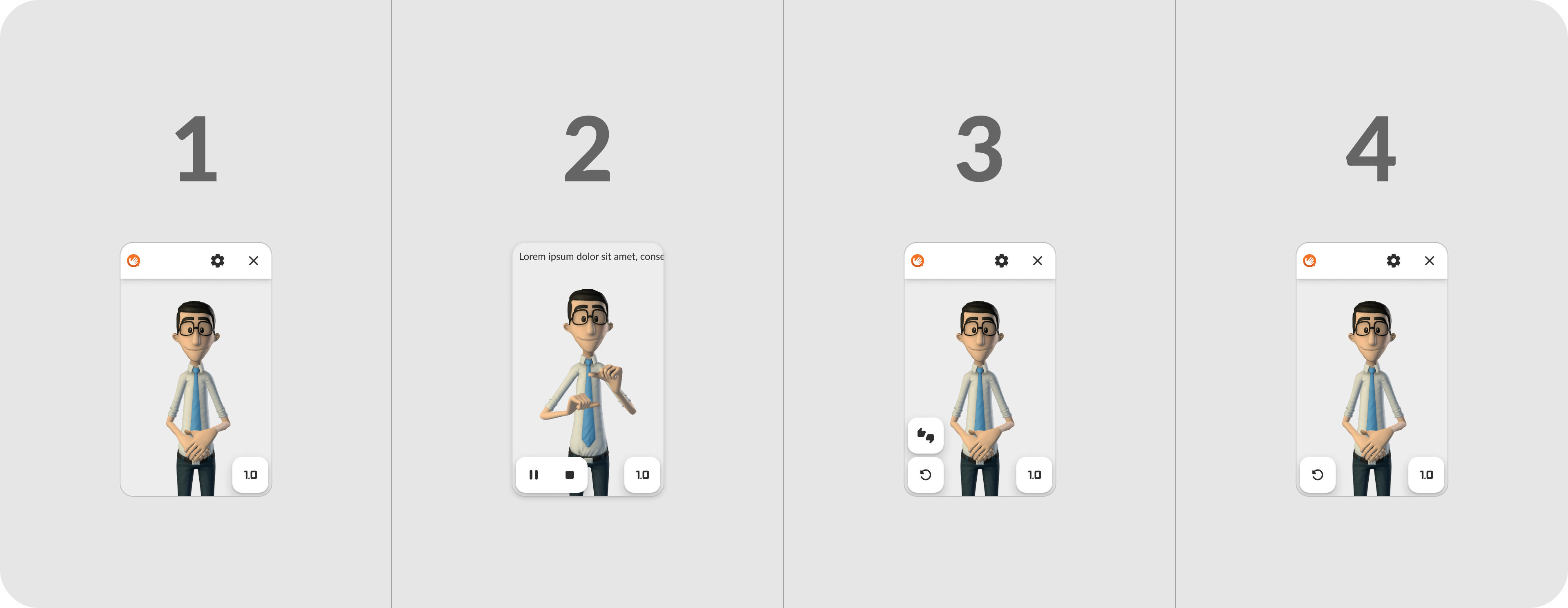
- Resting window
- Translation loading
- Avatar translating
- Post-translation → Active rating button
- Post-rating
TIP
Since this is the default flow, there's no need to combine functionalities to achieve this behavior. Simply activating the SDK and performing translations will automatically follow this flow.
Minimized Window
In this variation, the translator window appears only while the translation is in progress. When there is no active translation, it retracts into a floating widget.
This type of setup is ideal for interfaces with limited space, as it reduces the occupied screen area and minimizes interference with the product’s interface.
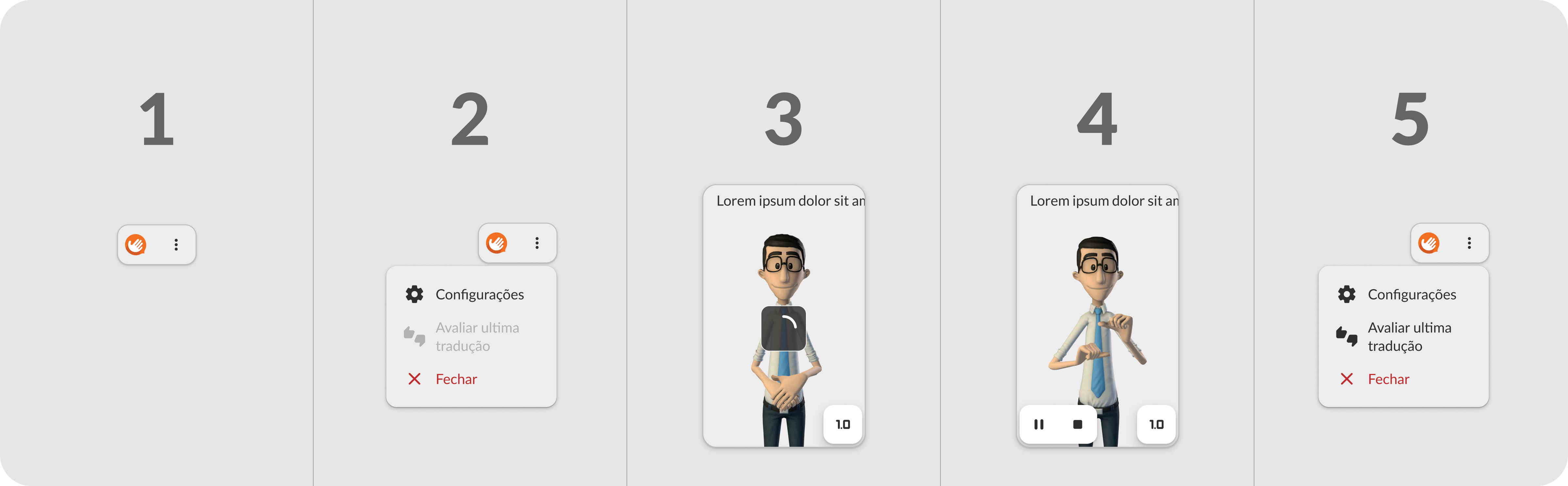
- Widget
- Widget with open menu
- Translation loading
- Avatar translating
- Post-translation → Widget with open menu
To achieve this flow, you need to combine functionalities, triggering them as needed:
The theoretical flow would be:
- Start SDK;
- Minimize;
- Maximize;
- Translate;
- Stop translation;
- Minimize.
Below, you can see an example of using these functionalities together:
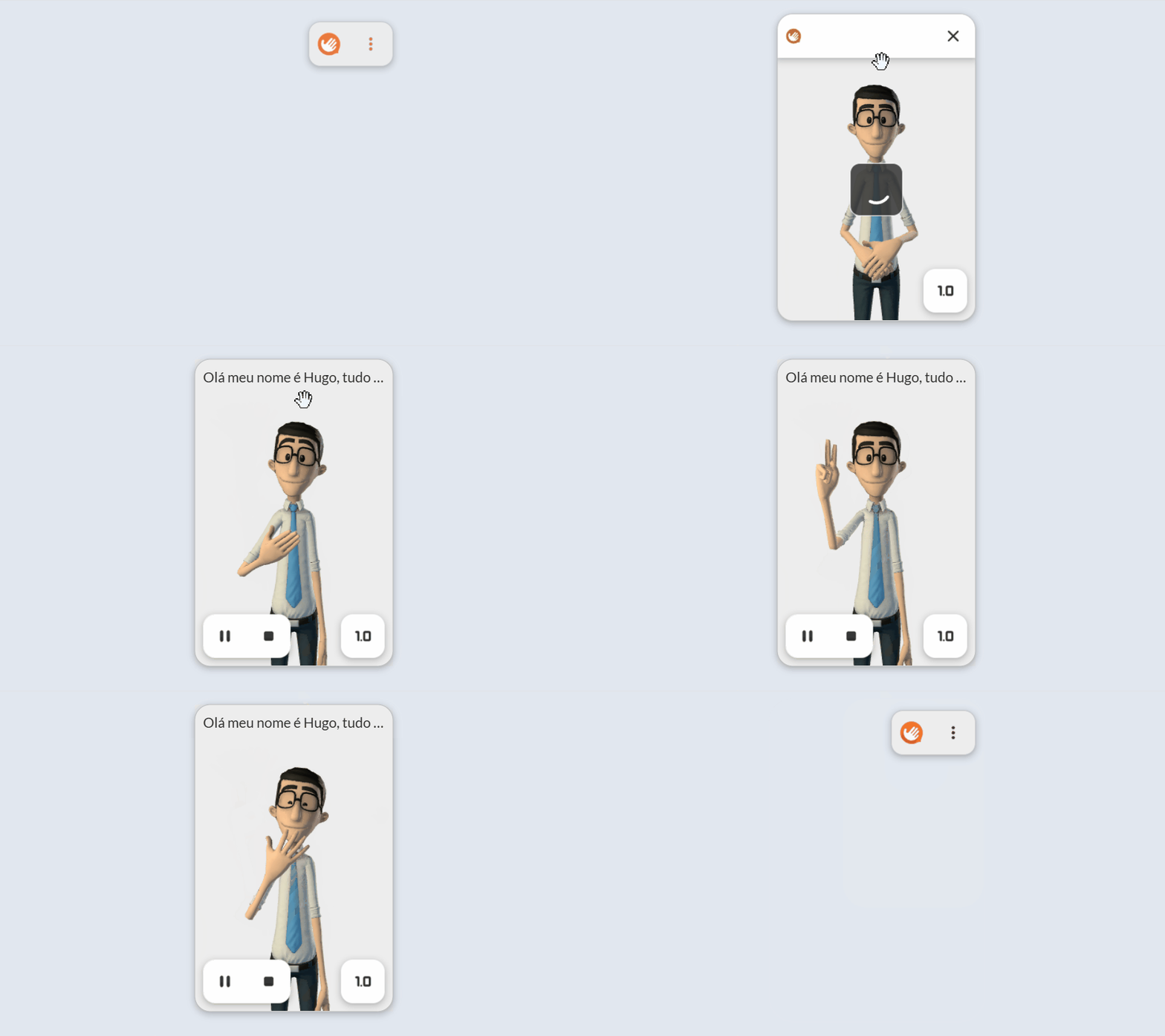
Translation + Minimize and Maximize
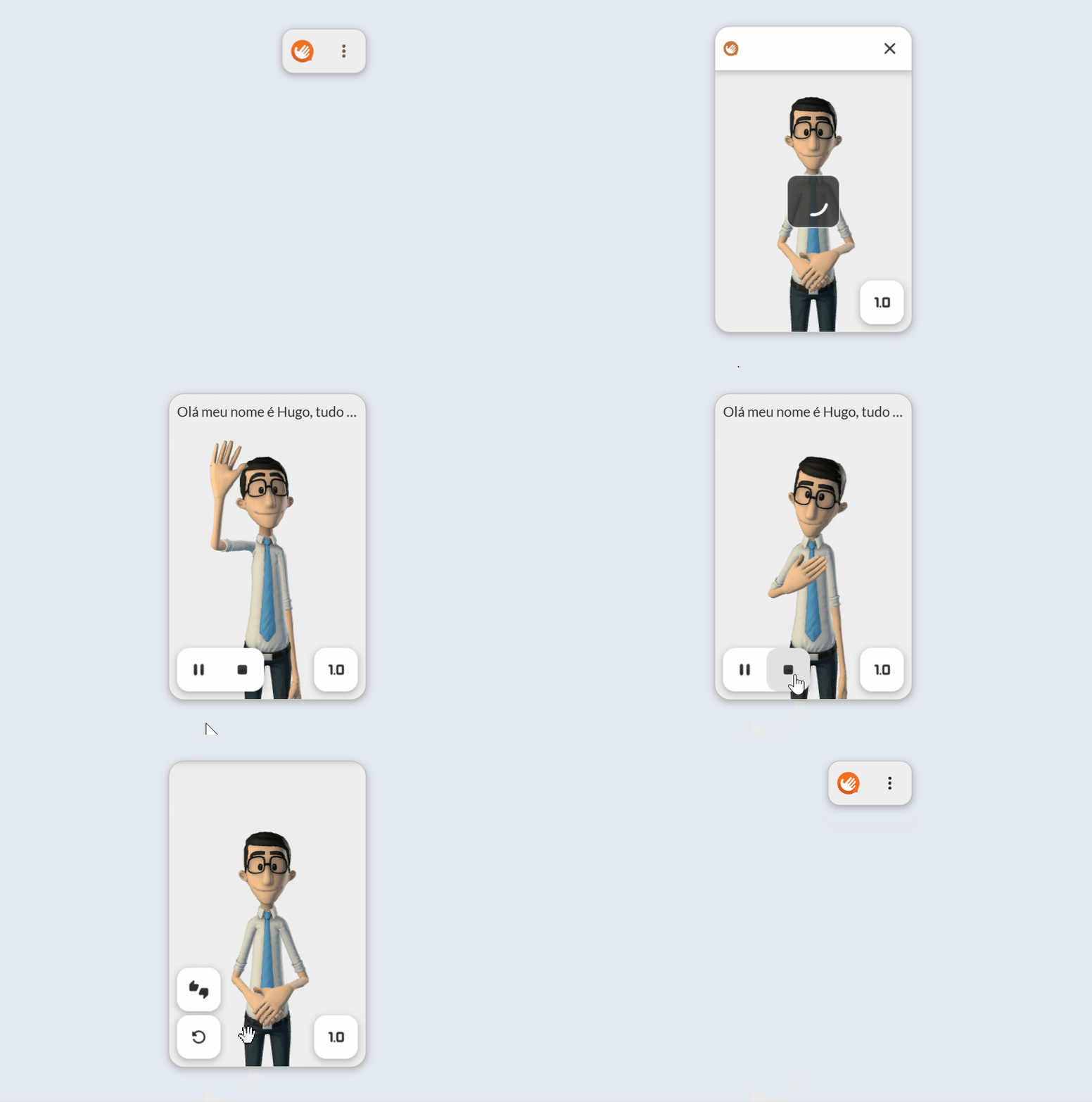
Stop translation + Minimize and Maximize